
Leave Your Vacation Rental Management to Us
Free Online ConsultationWhy Wi-Fi Quality Makes or Breaks the Guest Experience at Vacation Rentals
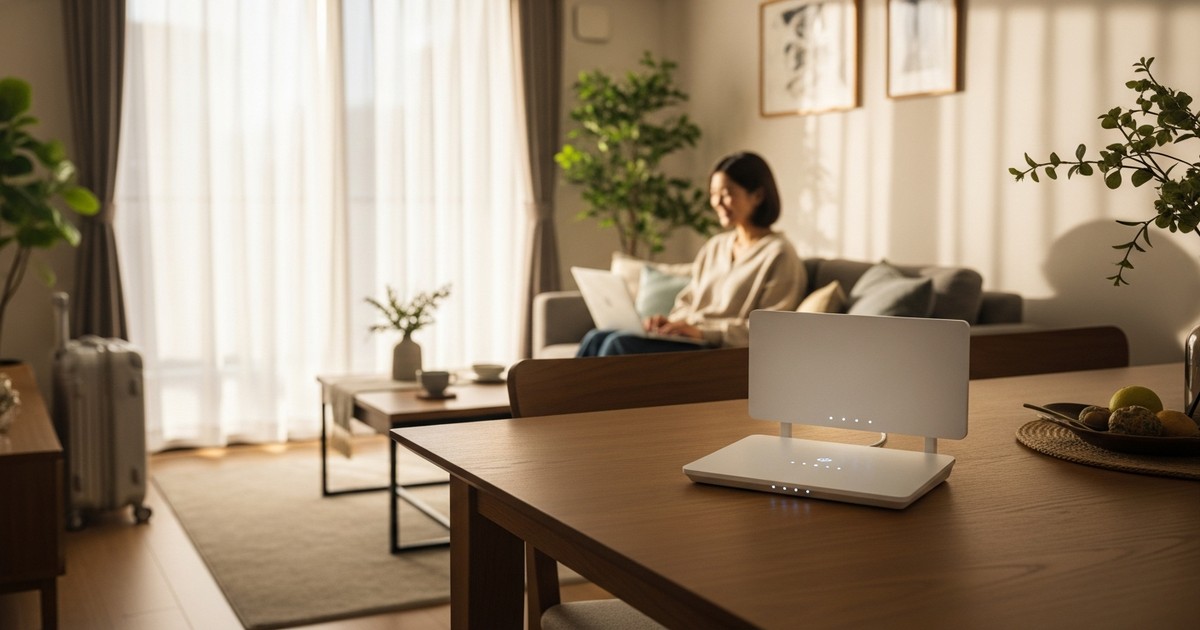
When running a vacation rental, having a well-set-up Wi-Fi environment is one of the biggest factors influencing guest satisfaction. According to a survey published by Booking.com, about 80% of travelers consider “free Wi-Fi” a key factor when choosing where to stay. For inbound travelers in particular, Wi-Fi is essential for local navigation, translation apps, and posting on social media—so poor connectivity translates directly into poor reviews.
In fact, an analysis of Airbnb reviews shows that negative comments like “the Wi-Fi was slow” or “the connection was unstable” tend to concentrate in one- and two-star reviews. Conversely, mentions of “great Wi-Fi” appear frequently in high-rated reviews, showing that connection quality directly affects repeat bookings and reservation rates. In other words, setting up a solid Wi-Fi environment isn’t just part of the service—it’s a business decision that impacts your revenue.
Building a proper Wi-Fi environment for a vacation rental requires considering multiple factors together: the type of internet line, router specifications, placement, and security measures. This article walks through each of these points in detail, backed by concrete figures and real-world examples.
Types of Internet Lines and How to Choose
Fiber-Optic Internet: The Standard Choice
Fiber-optic internet should be your first choice for a vacation rental property. Standard fiber connections offer download speeds of up to 1 Gbps, with real-world speeds typically ranging from 100–500 Mbps. This means multiple guests can stream video or make video calls simultaneously without noticeable slowdowns, ensuring a stable Wi-Fi environment. Monthly fees vary by provider but typically run ¥3,500–4,500 for apartments and ¥5,000–6,000 for standalone houses.
Installing fiber requires a physical setup process, which usually takes 2–4 weeks from application to activation. During busy periods, this can stretch to over a month, so it’s wise to start the process early, alongside property acquisition or renovation. For apartments, whether installation is possible depends on the building’s existing wiring, so be sure to check with the management company beforehand.
When to Use Mobile Wi-Fi or Home Routers
For properties where fiber installation isn’t possible, or as a stopgap solution until fiber is activated, mobile Wi-Fi (pocket Wi-Fi) or home routers can be used. Home routers simply plug into an outlet, and some models advertise theoretical download speeds of up to 4.2 Gbps. In practice, though, real-world speeds often max out at 30–100 Mbps, and performance drops noticeably as more users connect. Monthly fees run around ¥4,000–5,500, which isn’t much different from fiber.
Mobile Wi-Fi typically costs ¥3,000–4,500 per month, with plans either capped at a set monthly data allowance (50GB, 100GB, etc.) or offering effectively unlimited data. As a rough guide, guests tend to use 2–5GB per day per group. Over a 30-night period, that adds up to 60–150GB, so an unlimited plan is the safer bet. That said, both speed and stability fall short of fiber, so it’s best treated as a temporary solution rather than a permanent one.
Key Specs to Look for When Choosing a Router
Wi-Fi Standards and Frequency Bands
The first thing to check when choosing a router is the Wi-Fi standard. Wi-Fi 6 (IEEE 802.11ax) routers, now the mainstream standard, offer roughly 1.4 times the maximum speed of the previous Wi-Fi 5 (IEEE 802.11ac) standard, while also reducing slowdowns when multiple devices connect at once. Priced between ¥8,000–15,000, they offer excellent value for the performance gain.
As for frequency bands, dual-band support (2.4GHz and 5GHz) is essential. The 2.4GHz band penetrates walls and floors more easily, covering a wider area, but is prone to interference from devices like microwaves. The 5GHz band is better suited for high-speed transfers but struggles with obstacles. Providing guests with two SSIDs (network names) and letting them switch between bands as needed makes troubleshooting much easier.
Simultaneous Connections and Processing Power
It’s common for each guest to bring 2–3 devices—smartphones, tablets, laptops—to a vacation rental. A group of four could easily connect up to 12 devices at once. If you’ve also installed IoT devices like smart locks, security cameras, or smart speakers, those add to the total connection count as well. To be safe, choose a router rated for 20 or more simultaneous connections in its spec sheet.
Processing power comes down to CPU and memory. Look for routers with a dual-core (or better) CPU and at least 256MB of memory to maintain stable performance even with many devices connected at once. Good cost-performance options include Buffalo’s “WSR-3200AX4S” (around ¥9,000) and TP-Link’s “Archer AX55” (around ¥8,000).
Optimizing Router Placement and Coverage
Basic Principles of Router Placement
As a general rule, place the router near the center of the building, at a height of about 1–1.5 meters off the floor. Wi-Fi signals radiate outward in concentric circles, so placing the router against a wall or in a corner will bias the signal to one side, leaving connections unstable in rooms on the opposite end. For maisonette-style units or two-story properties in particular, placing the router at a midpoint between the two floors—such as on a shelf near the ceiling of the first floor—helps the signal reach both levels more evenly.
Avoid placing the router near aquariums, metal furniture, or microwaves, as these can weaken or interfere with the signal. Also, avoid hiding the router inside a closet or behind a TV stand—enclosed spaces trap heat, shortening the router’s lifespan and weakening its signal. If appearance is a concern, choose a compact, well-designed model, or use a router cover as a practical solution.
When to Add a Range Extender or Mesh Wi-Fi System
For properties with a total floor area over 60㎡, or layouts with many walls, a single router may not be enough to cover the whole space. As a general guideline, in reinforced concrete apartment buildings, the practical range is roughly 15 meters for the 2.4GHz band and 10 meters for the 5GHz band. If bedrooms or living rooms fall outside this range, consider adding a range extender or a mesh Wi-Fi system.
Range extenders are inexpensive (¥3,000–5,000) and easy to install, but they typically cut throughput roughly in half. Mesh Wi-Fi systems, on the other hand, let the main unit and satellite units work together seamlessly with minimal speed loss, though a two-unit set typically costs ¥15,000–25,000. For properties over 80㎡ or with a 3LDK-or-larger layout, mesh Wi-Fi is the better choice for building a stable connection. Affordable mesh-compatible models include TP-Link’s “Deco X50” and Buffalo’s “WNR-5400XE6” series.
Concrete Security Measures
Separating the Guest Network
Always keep your operational IoT devices (smart locks, security cameras, noise sensors, etc.) on a separate network from the one guests connect to. Most routers include a “guest network” feature that lets you set up a different SSID and password for management use versus guest use. This eliminates the risk of guest devices accessing your operational IoT equipment.
You can also apply bandwidth limits to the guest network. For example, capping each device’s maximum speed at 50 Mbps ensures that one guest downloading large files won’t significantly impact other guests’ connections. This setting can be adjusted from the router’s admin panel and doesn’t require any special technical knowledge.
Password Management and Encryption
Set your Wi-Fi password to at least 12 characters, combining letters, numbers, and symbols, and use WPA3 encryption (or WPA2 if WPA3 isn’t supported). Older standards like WEP and the original WPA have known vulnerabilities that increase the risk of unauthorized access. Ideally, you should change the password every time guests change over, but at minimum, updating it once a month is recommended given the practical workload involved.
How you share the password with guests matters too. The most reliable method is printing it on paper, laminating it, and placing it somewhere visible near the router or in the living room. Combining this with a mention in the house manual and a message sent at check-in helps reduce guest inquiries. Creating a QR code that guests can simply scan with their smartphone to connect is another approach that’s especially popular with inbound guests.
Troubleshooting and Operational Tips
Setting Up Remote Restarts
Roughly 70% of Wi-Fi issues are said to be resolved simply by restarting the router. However, asking guests to unplug and replug the router during their stay is inconvenient and detracts from their experience. By connecting a smart plug (around ¥2,000–3,000) to the router’s power supply, you can remotely turn the power on and off from your smartphone. Popular products for this include SwitchBot and the TP-Link Tapo series.
Another option is to schedule automatic router restarts. Many routers allow you to set a weekly restart time from the admin panel, which clears accumulated temporary files and refreshes memory to keep the connection stable. Scheduling the restart during the cleaning window between checkout and the next check-in (for example, between 11 a.m. and 3 p.m.) avoids any disruption to guests.
Regularly Checking Connection Speed
Setting up your Wi-Fi environment isn’t a one-and-done task—regular speed checks are essential. Have your cleaning staff measure actual speeds using a free app like Speedtest by Ookla, and if download speeds fall below 30 Mbps, consider repositioning the router or replacing your equipment. A download speed of 30 Mbps is enough to support 4K video streaming, which covers the needs of the vast majority of guests.
In some cases, the slowdown may originate from your provider’s line quality rather than your own equipment, so if speeds remain consistently poor, it’s worth contacting your provider or considering a plan change. Simply switching to a provider that supports IPv6 (IPoE) connections can noticeably improve speeds even during peak congestion hours in the evening. There are reported cases where pairing an IPv6-compatible router with a matching provider plan doubled or even tripled actual measured speeds.
Approximate Costs for Setting Up a Wi-Fi Environment
To summarize the initial and ongoing costs of setting up a Wi-Fi environment from scratch at a vacation rental: fiber installation fees range from free to ¥26,400 (depending on promotions), a Wi-Fi 6 router runs ¥8,000–15,000, a mesh Wi-Fi system (if needed) costs ¥15,000–25,000, and a smart plug costs ¥2,000–3,000. All told, initial investment typically falls in the range of ¥25,000–70,000.
Ongoing monthly costs are limited to the fiber provider fee of ¥3,500–6,000. If you opt to rent a router instead of buying one, add ¥300–500 per month—though if you plan to use it for more than two years, purchasing works out cheaper overall. Annual Wi-Fi-related costs come to roughly ¥42,000–72,000, which works out to about ¥115–200 per night. Given that this investment can boost review scores and booking rates, it’s an expense that more than pays for itself.
Let Stay Buddy Handle Your Vacation Rental’s Wi-Fi Setup Too
Setting up a proper Wi-Fi environment involves a wide range of tasks—choosing the right internet line, selecting router models, optimizing placement, configuring security settings, and building a system for handling issues when they arise. Since every property has a different layout and structure, a one-size-fits-all approach often falls short of delivering the connection quality guests expect.
At Stay Buddy, we provide comprehensive support covering everything from launch preparation to day-to-day management, including building out the Wi-Fi environment your vacation rental needs. As part of our management services, we can handle everything in one place: selecting the optimal internet line and equipment based on your property’s layout and expected guest count, arranging installation work, and preparing clear connection instructions for guests.
Complaints and low review scores caused by poor connectivity translate directly into lower occupancy rates. Setting up a proper Wi-Fi environment before you even open for business lets you start off delivering the kind of experience that keeps guests satisfied.
If you have any questions or concerns about running a vacation rental, please feel free to reach out to Stay Buddy. Our experienced staff will offer concrete recommendations tailored to your property’s specific situation.